MCP Server Documentation

Setup instructions verified August 2026

What is MCP?

The Model Context Protocol (MCP) is an open standard that allows AI assistants like Claude, ChatGPT, and others to securely connect to your Sure Send CRM account. Once connected, your AI assistant can search contacts, create tasks, send messages, build automations, and much more — all using natural language.

Sure Send's MCP server exposes 91 tools across 13 domains, giving your AI assistant full access to the CRM features you use every day.

Connect Your AI Assistant

Pick the client you use below. Every setup uses the same hosted endpoint, and Sure Send opens a browser-based OAuth screen when the client is ready to authenticate. You do not need to create or copy an API key.

Connection details

Server URL https://suresend.ai/mcp
Transport Streamable HTTP (JSON-RPC)
Authentication OAuth 2.1 with Dynamic Client Registration
Credentials Your normal Sure Send sign-in; no API key or client secret

Claude web and Claude Desktop

Sure Send is a hosted web connector. Add it once in Claude and it is available on Claude web and Claude Desktop. The exact menu depends on whether you use an individual or organization plan.

Pro or Max

  1. Open Claude and select Customize → Connectors.
  2. Select Add, then Add custom connector.
  3. Name it Sure Send CRM and enter https://suresend.ai/mcp.
  4. Select Add, then Connect.
  5. Sign in to Sure Send, review the requested access, and approve it.

Team or Enterprise

  1. An Owner opens Organization settings → Connectors and selects Add.
  2. Select Custom → Web, enter the Sure Send Server URL, and add it to the organization.
  3. Each member opens Customize → Connectors, finds Sure Send CRM, and selects Connect.
  4. Each member completes OAuth with their own Sure Send account.

In a conversation, use the + menu, choose Connectors, and enable Sure Send CRM. Organization owners can control whether members are allowed to add custom connectors. See Anthropic's current connector guide.

Claude Code

Run this command in a terminal to make Sure Send available in every project:

claude mcp add --transport http --scope user suresend-crm https://suresend.ai/mcp
  1. Start Claude Code and enter /mcp.
  2. Select suresend-crm and complete authentication in the browser window.
  3. Return to Claude Code. Use claude mcp list or /mcp to confirm it is connected.

For a project-only setup, replace --scope user with --scope project. See Claude Code's MCP documentation.

Grok (xAI)

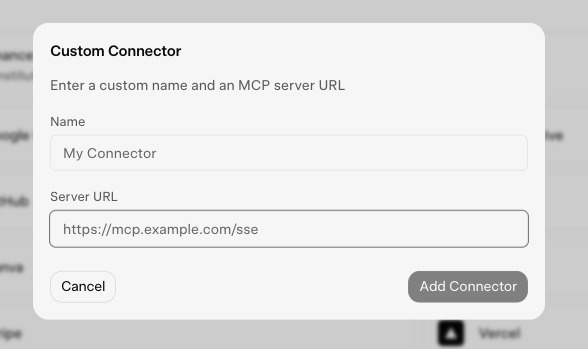
  1. Open grok.com/connectors.
  2. Select New Connector, then Custom.
  3. Enter Sure Send CRM for the name and https://suresend.ai/mcp for the Server URL.
  4. Select Add Connector and complete the Sure Send sign-in and approval screen.
  5. Start a new Grok conversation and enable the connector when you want Grok to use CRM tools.

See xAI's connector documentation.

Grok Custom Connector dialog with Name and Server URL fields
Grok's Custom Connector form, captured August 2026.

Grok Bot

In Cursor Grok Bot, you can just ask it to connect. Grok Bot will help authorize and set it up — no config file required.

Example prompt

Connect to the Sure Send MCP server at https://suresend.ai/mcp
  1. Ask Grok Bot to connect to the Sure Send MCP server at https://suresend.ai/mcp.
  2. Grok Bot will confirm the details and walk you through Sure Send authorization.
  3. Approve access with your Sure Send account. CRM tools are available in your next message.

Grok Bot runs in the cloud, so it uses this hosted HTTPS endpoint — not a local stdio server.

ChatGPT

  1. Open ChatGPT Plugins.
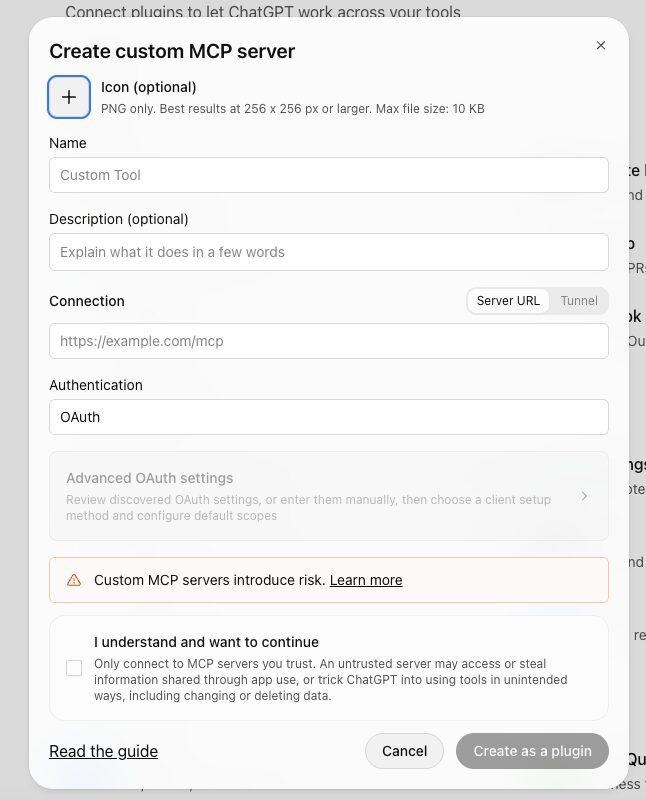
  2. Select Add → Create custom MCP server.
  3. Enter a name such as Sure Send CRM. A description and icon are optional.
  4. Under Connection, keep Server URL selected and enter https://suresend.ai/mcp.
  5. Keep Authentication set to OAuth, check I understand and want to continue, and select Create as a plugin.
  6. Finish the Sure Send OAuth screen, then add the plugin from the tools menu in a new chat.

Custom MCP server availability depends on your account and workspace policy. Follow the official OpenAI setup guide if your controls differ.

ChatGPT Create custom MCP server dialog with Server URL and OAuth selected
ChatGPT's Create custom MCP server form, captured October 2026.
Custom GPT Actions are different. They require an OpenAPI schema and cannot be configured by pasting Sure Send's MCP URL into the Actions editor.

Codex CLI and IDE extension

Codex CLI

codex mcp add suresend-crm --url https://suresend.ai/mcp
codex mcp login suresend-crm
codex mcp list

The login command opens the Sure Send OAuth flow. In the Codex terminal UI, use /mcp to inspect the connection.

Codex IDE extension

  1. Open the gear menu and select MCP servers.
  2. Select Add server, name it Sure Send CRM, and choose Streamable HTTP.
  3. Enter the Server URL, save, and select Restart extension.
  4. Select Authenticate next to Sure Send CRM.

See OpenAI's Codex MCP documentation.

Cursor

Add Sure Send as a global MCP server in ~/.cursor/mcp.json, or use .cursor/mcp.json for one project:

{
  "mcpServers": {
    "suresend-crm": {
      "url": "https://suresend.ai/mcp"
    }
  }
}
  1. Save the file and restart Cursor.
  2. Open Customize → MCPs (or the MCP tools panel) and find Sure Send CRM.
  3. Select the authentication control and complete the Sure Send OAuth screen.
  4. Confirm the server is enabled before asking Cursor Agent to use CRM tools.

Cursor supports remote Streamable HTTP servers and OAuth. See Cursor's MCP documentation.

Connect with Other MCP Clients

Any client that supports remote Streamable HTTP MCP and browser-based OAuth can connect. Create a remote server entry with the Server URL above. Leave custom headers, bearer tokens, client IDs, and client secrets empty unless the client explicitly asks for them after discovery.

Older clients that support only local stdio servers or legacy SSE may need an MCP proxy or a client update. Sure Send's hosted endpoint is not a command to run on your computer.

Authentication

Sure Send uses OAuth 2.1 with Dynamic Client Registration (RFC 7591) to securely authenticate MCP clients. This means your AI assistant can register and authenticate automatically — no API keys to manage.

How it works

  1. Your MCP client discovers Sure Send's OAuth configuration via /.well-known/oauth-protected-resource
  2. The client dynamically registers itself via POST /oauth/register
  3. You authorize the connection by logging in to Sure Send in your browser
  4. The client receives an OAuth token and begins making MCP requests

Available Scopes

You can control what your AI assistant can access. Available permission scopes:

read_people — View contacts
write_people — Create/edit contacts
read_companies — View companies
write_companies — Create/edit companies
read_tasks — View tasks
write_tasks — Create/edit tasks
read_contracts — View contracts/deals
write_contracts — Create/edit contracts
read_calls — View call logs
read_campaigns — View campaigns
write_campaigns — Manage campaigns
write_notes — Add notes
read_dashboard — View dashboard
read_smart_lists — View smart lists
write_smart_lists — Manage smart lists
read_team — View team members

Available Tools

Sure Send's MCP server provides 91 tools organized by domain. Here's everything your AI assistant can do:

3 Dashboard

get_dashboard read-only

View your CRM dashboard with key metrics: total leads, pipeline stages, hot leads, tasks due today, and active contracts.

get_win_the_day read-only

Get your personalized daily goals and metrics to stay on track.

get_call_report read-only

View call analytics and reporting data for your team.

4 Newsletters

list_newsletter_campaigns read-only

Find newsletter campaigns by name, status, or send start date, with lifetime metrics (sends, opens, clicks, bounces, and rates). Date filters select campaigns by when sending started, not events in that period. Requires the read_campaigns or read scope.

get_newsletter_report read-only

Get a campaign's lifetime metrics, recipient status counts, and paginated link click analytics. Metrics are calculated from current recipient statuses, so they match the newsletter page. Link URLs are returned with unsubscribe tokens and recipient details removed. These counts cover every recipient of the campaign, so they can be higher than the totals from list_newsletter_recipients and rank_newsletter_contacts, which only count contacts you can read. Requires the read_campaigns or read scope.

list_newsletter_recipients read-only

List a campaign's recipients with contact identity, delivery email, current status, lifetime open/click counts, and engagement timestamps. Filter by exact current status or historical engagement (opened or clicked). Only contacts you can read are included. Requires both read_campaigns and read_people, or read.

rank_newsletter_contacts read-only

Find your top 100 contacts across the last 3 newsletters with {"last_n": 3, "limit": 100}. Choose explicit campaign_ids or the latest campaigns by send start (up to 50). Ranking groups by person and sums stored opens plus clicks; metric can also select opens or clicks alone. Counts include repeat and automated tracking, and opens implied by clicks. Zero scores are excluded. Requires both read_campaigns and read_people, or read.

9 People & Contacts

search_people read-only

Search and filter contacts by name, email, phone, stage, timeframe, tags, assigned user, or custom field values. Supports pagination.

get_person read-only

Get detailed contact information including contact methods, stage, tags, custom fields, engagement score, and recent activity.

create_person write

Create a new contact or lead with name, email, phone, stage, lead source, assignment, timeframe, and tags.

update_person write

Update contact fields. Supports replacing tags or incremental tag changes (add/remove specific tags).

add_note_to_person write

Add a note to a specific contact.

get_hot_leads read-only

Get your list of hot leads — high-priority contacts that need attention.

get_stages read-only

List all valid pipeline stages for filtering or creating contacts.

get_lead_sources read-only

List all valid lead sources.

get_tags read-only

List all available tags for organizing contacts.

4 Companies

search_companies read-only

Search and filter companies by name, industry, website, stage, assigned user, or tags.

get_company read-only

Get detailed company information including contacts, industry, revenue, stage, tags, and related people.

create_company write

Create a new company with name, industry, website, revenue, stage, lead source, and tags.

update_company write

Update company fields like name, industry, website, and revenue.

5 Contracts & Deals

search_contracts read-only

Search and filter contracts by name, stage, assigned user, type, or associated person/company.

get_contract read-only

Get detailed contract info including value, stages, closing dates, commissions, property address, and related people.

create_contract write

Create a new contract or deal with name, value, stages, closing dates, and associated contacts.

update_contract write

Update contract fields including property address, referral source, and closing dates.

get_contract_types read-only

List all valid contract types for filtering or creating contracts.

7 Tasks

get_tasks_due_today read-only

Get all tasks due today for the current user.

get_overdue_tasks read-only

Get all overdue incomplete tasks for the current user.

search_tasks read-only

Search and filter tasks by query, status, priority, assignee, or associated record type.

create_task write

Create a task with title, description, due date, priority, and optional association to a contact, company, or contract.

update_task write

Update task fields like title, description, due date, and priority.

complete_task write

Mark a single task as complete.

complete_tasks write

Mark multiple tasks as complete in a single batch operation.

2 Notes

add_note write

Add a note to any record — a person, company, or contract. Supports basic HTML formatting.

list_notes read-only

List notes for a specific record, optionally filtered by type.

2 Calls

list_calls read-only

List recent calls, both CRM-logged calls and your AI agent’s calls, with optional filters for person, user, date range, outcome, and source.

get_call read-only

Get detailed call information including duration, sentiment analysis, transcript, and conversation summary. Works for AI agent calls too.

2 Appointments

list_appointments read-only

List appointments with optional filters.

create_appointment write

Create a new appointment with title, date/time, location, type, and assignee.

15 Messaging

send_email write

Send an email to a contact with a custom subject and body, or use a saved template. Supports merge fields and CC.

send_bulk_email write

Send an email to many contacts at once by IDs or search filters. Requires a template and supports dry_run to preview the recipient count. Max 500 recipients per call.

create_draft_email write

Save a draft email under a contact for review. The draft appears in the contact's email tab and is sent from the UI.

send_text_message write

Send an SMS to a contact with a custom body or saved template. Supports merge fields.

list_email_templates read-only

List available email templates with pagination.

list_text_templates read-only

List available SMS templates with pagination.

create_email_template write

Create a new email template with subject, body, and merge field support.

update_email_template write

Edit an existing email template’s subject, body, name, category, or sharing without creating a duplicate.

create_text_template write

Create a new SMS template with message and merge field support.

update_text_template write

Edit an existing SMS template’s message, name, category, or sharing without creating a duplicate.

preview_email_template read-only

Preview an email template with merge fields populated from a specific contact.

list_scheduled_messages read-only

List pending scheduled emails and texts. Filter by type or contact. Does not include steps queued by automations; use list_automation_enrollments for those.

cancel_scheduled_message write

Cancel a scheduled email or text before it sends.

list_emails read-only

List sent and received emails with a plain-text preview. Filter by contact, direction, date range, or whether your AI agent sent it.

get_email read-only

Read one email in full: plain-text body, recipients, status, and open/click tracking.

7 Automations

list_automations read-only

List automations, filtered by status (active, inactive, draft) or folder. Use this to find automation IDs.

get_automation_config_options read-only

Get available triggers, actions, stages, tags, templates, and team members for building automations. Always call this before creating an automation.

create_automation write

Create a workflow automation with triggers, conditions, actions, delays, and branching. Always created as a draft for visual review in the automation builder.

update_automation write

Update an existing automation's configuration.

enroll_in_automation write

Enroll a contact into an existing active automation.

unenroll_from_automation write

Cancel a contact's active/paused enrollment(s) in an automation, stopping messages still waiting in the workflow.

list_automation_enrollments read-only

List a contact's automation enrollments with status and next scheduled step time. Use it to find every automation to cancel and to confirm a cancel.

1 Team

list_users read-only

List team members with their name, email, and role. Use to find user IDs for assigning contacts, tasks, or contracts.

30 Library

The shared template & automation library — discover and copy content from other teams, publish your own, organize it into collections, and review what you use.

search_library read-only

Search the shared template & automation library. Browse email templates, text templates, automations, and smart lists shared across teams, filtered by type, category, tags, or query.

get_library_item read-only

Get full details of a library item, including the complete template or automation configuration, so you can review it before copying.

find_library_item_by_source read-only

Find the library item created from a specific record. Use it to check whether a template or automation has already been added to the library.

get_related_library_items read-only

Get library items related to a given item by type and category. Useful for discovering similar templates or automations.

get_popular_library_tags read-only

Get the most-used tags across library items, for discovering common tags and filtering searches.

create_library_item write

Add an email template, text template, automation, or smart list to the library. New items are private to your team by default.

update_library_item write

Update a library item your team owns. The version is auto-incremented when the content changes. Creator or team admins only.

update_library_item_sharing write

Set an item’s visibility to private or shared with specific teams. Public visibility needs admin approval — use request_library_item_publish. Team admins/owners only.

copy_library_item write

Copy a library item into the current team as a local copy.

bulk_copy_library_items write

Copy several library items into the current team in one call, with per-item success, failure, and skipped results.

validate_library_teams read-only

Check which of a list of team IDs exist, before sharing a library item with specific teams.

get_my_library_submissions read-only

List your community library submissions, including pending, approved, and rejected ones.

request_library_item_publish write

Submit an approved library item for admin review so it can be listed publicly. Team admins/owners only.

update_library_submission write

Edit a pending community submission. Pending submissions only, and only by the original submitter.

withdraw_library_submission write

Withdraw and permanently delete a pending community submission.

get_library_item_activity read-only

Get the activity log for an item your team owns — creation, copies, reviews, approvals, rejections, and other lifecycle events.

list_library_collections read-only

List library collections the current team can access, including shared and public ones.

get_library_collection read-only

Get a library collection with its ordered items.

create_library_collection write

Create a library collection for the current team. Collections start as private drafts.

update_library_collection write

Update a collection your team owns — name, description, visibility, and shared teams. Public visibility needs admin approval.

delete_library_collection write

Delete a collection your team owns. The library items inside it are not deleted.

add_library_item_to_collection write

Add one of your team’s library items to a collection you can manage.

remove_library_item_from_collection write

Remove a library item from a collection you can manage.

reorder_library_collection_items write

Change the order of items in a collection you can manage.

submit_library_collection_for_approval write

Submit a collection for admin review so it can be listed publicly. Team admins/owners only.

favorite_library_item write

Add a library item to your favorites.

unfavorite_library_item write

Remove a library item from your favorites.

review_library_item write

Create or update your rating and review for a library item. You must have copied the item first.

delete_library_review write

Delete your review of a library item.

list_library_reviews read-only

List ratings and reviews for a library item, from users who copied it.

Example Prompts

Once connected, try asking your AI assistant things like:

Daily Overview

"What's on my plate today? Show me my tasks and hot leads."

Contact Search

"Find all contacts in the 'Nurture' stage who were added in the last 30 days."

Follow-Up

"Send a follow-up email to John Smith using the 'Post-Meeting Check-In' template."

Pipeline Review

"Show me all active contracts closing this month and their total value."

Automation

"Create an automation that sends a welcome email when a new lead is added."

Task Management

"Create follow-up tasks for all my overdue leads and assign them to me."

Troubleshooting

"Authorization failed" or "Could not connect"

  • Make sure you are logged in to your Sure Send account at suresend.ai
  • Check that the server URL is exactly https://suresend.ai/mcp
  • Try disconnecting and reconnecting the MCP server in your client
  • If using Claude Desktop, restart the application after changing config

"Permission denied" on a tool

  • Your Sure Send role determines what data you can access via MCP
  • Admin users have full access to all tools
  • Standard users can only access their own records and records shared with them
  • Contact your team admin if you need additional permissions

"Tool not found" or tools not appearing

  • Ensure your MCP client supports the Streamable HTTP transport
  • Verify the configuration JSON is valid (no trailing commas, correct quotes)
  • Some MCP clients may need to be restarted to discover new tools

Slow responses

  • Large search results are paginated automatically (default 25 results per page)
  • Use filters to narrow your search for faster responses
  • The first request after authorization may take slightly longer

Data not showing up

  • MCP respects your team's data permissions — you'll only see records you have access to
  • Recently created records should appear immediately
  • If searching by custom fields, make sure the field name matches exactly

Security & Privacy

  • ✓ OAuth 2.1 authentication — no API keys stored in config files. Your credentials are never shared with the AI assistant.
  • ✓ Role-based access control — MCP respects your existing Sure Send permissions. Users only see data they're authorized to access.
  • ✓ Revocable access — you can revoke MCP access at any time from your Sure Send account settings under Connected Applications.
  • ✓ Encrypted transport — all communication between your AI assistant and Sure Send is encrypted via HTTPS.
  • ✓ Automation safety — automations created via MCP are always saved as drafts, requiring manual review before activation.

Need Help?

If you're still having trouble connecting or using the MCP server, reach out to our support team:

  • Email: support@suresend.ai
  • In-app chat: Click the chat icon in the bottom-right corner of Sure Send